RemoveTexts vs TinyFast
Side-by-side comparison to help you choose the right tool.

RemoveTexts
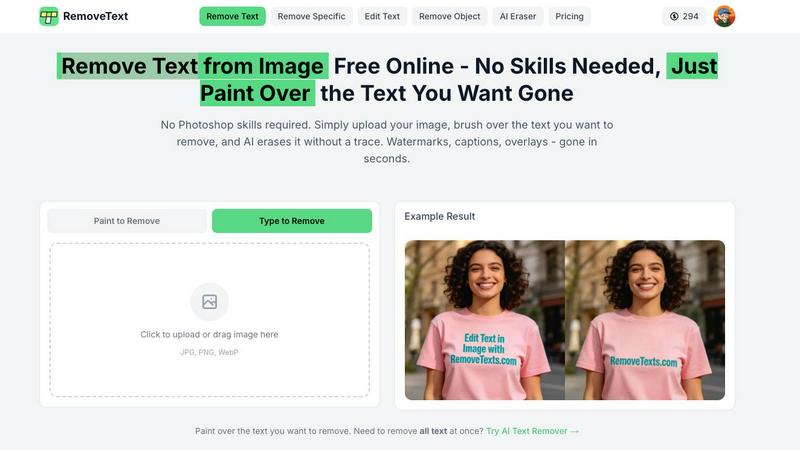
RemoveTexts is my go-to for effortlessly erasing any text from images using AI, no Photoshop skills required.
Last updated: March 11, 2026

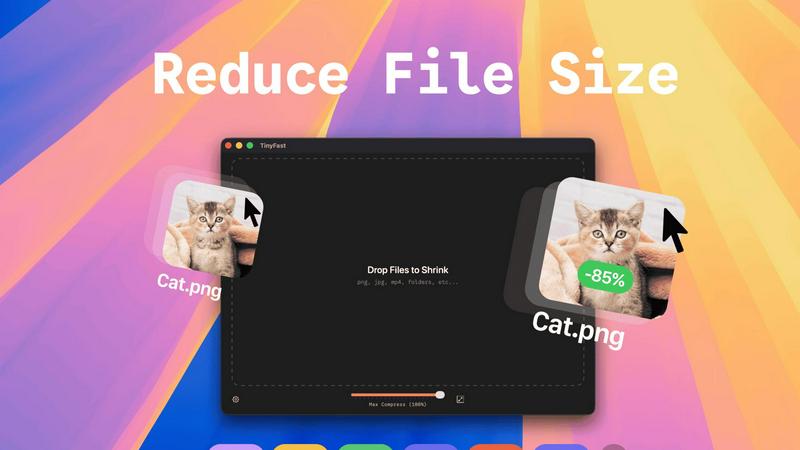
TinyFast instantly compresses files on your Mac while keeping your data private and secure with simple drag-and-drop.
Last updated: February 28, 2026
Visual Comparison
RemoveTexts
TinyFast
Feature Comparison
RemoveTexts
Paint to Remove
This is the flagship feature and my personal favorite for its surgical precision. Instead of relying solely on AI detection, you take direct control. Simply upload your image, use the brush tool to paint over the exact text or watermark you want gone, and let the AI work its magic. It's intuitive, fast, and perfect for complex images where you only need to remove specific words or logos while preserving everything else around it. The brush gives you the granularity that fully automatic tools sometimes lack.
Auto Remove All Text
When you need a clean sweep, this one-click wonder is a lifesaver. The AI scans your entire image, detects every text element—be it subtitles, captions, date stamps, or embedded watermarks—and removes them all simultaneously. It’s the ultimate tool for quickly cleaning up busy screenshots or images cluttered with multiple text overlays. You get a completely text-free canvas in seconds, which is perfect for creating clean backgrounds or repurposing visual content.
Edit & Replace Text
This feature moves beyond simple removal into intelligent editing, and it's genuinely impressive. Not only can you erase text, but you can also replace it with new words. The AI attempts to match the original font style, size, and color, blending your new text into the image naturally. It’s incredibly useful for updating old graphics, fixing typos in memes, or localizing text in images without having to recreate the entire design from scratch.
Remove Objects
While text is its specialty, RemoveTexts is powerful enough to handle other unwanted elements. The "Remove Objects" mode allows you to erase logos, people, blemishes, or any other distracting visual element from your photos. You use the same intuitive brush to paint over the object, and the AI seamlessly reconstructs the background. It turns a specialized text tool into a more versatile image cleanup assistant.
TinyFast
Batch & Drag-Drop Shrink
TinyFast supports batch processing, allowing you to drop entire folders for optimization in seconds. This feature is ideal for users dealing with large volumes of files, saving you time and effort as you streamline your workflow.
Blazing-Fast Compression
Experience lightning-fast compression speeds with TinyFast, thanks to its optimized native engines. Unlike online tools that require uploads and downloads, TinyFast compresses files locally, so you get immediate results without any waiting.
Resize Resolution
With TinyFast's automatic resize resolution feature, you can easily adjust the dimensions of your images and videos. This is particularly useful for social media posts or web uploads, where specific dimensions are required.
100% Local & Private
Privacy is paramount with TinyFast. All files remain on your device, meaning there are no uploads to unknown servers or cloud storage. This feature ensures that your sensitive documents and assets are protected, giving you peace of mind while you work.
Use Cases
RemoveTexts
Cleaning Product Photos for E-Commerce
Online sellers can instantly remove price tags, promotional text, or competing watermarks from product images to create a clean, professional-looking catalog. This is essential for building a trustworthy brand presence on platforms like Amazon, Etsy, or Shopify without needing a graphic designer for every single photo edit.
Preparing Professional Presentations & Documents
Professionals can quickly clean up screenshots, charts, and diagrams by removing irrelevant UI elements, timestamps, or annotations. It's also invaluable for legal or administrative work, allowing for the quick redaction of sensitive information from documents before sharing, ensuring clarity and confidentiality.
Enhancing Social Media & Blog Content
Content creators and marketers can repurpose images by stripping out old watermarks, subtitles, or intrusive text overlays. This allows a single great visual to be used across multiple campaigns or platforms. It’s perfect for creating pristine, on-brand imagery for Instagram, YouTube thumbnails, or blog headers in a fraction of the usual time.
Reviving Personal Photos & Memes
For personal use, it’s fantastic for removing date stamps from old digital photos, erasing unwanted text or people from vacation pictures, or even editing meme templates. You can take a great photo that’s been spoiled by a random watermark or caption and restore it to a clean state worthy of printing or framing.
TinyFast
Graphic Designers
Graphic designers often work with large image files that can slow down their workflow. TinyFast enables them to compress and optimize images quickly, ensuring they can deliver projects on time without sacrificing quality.
Video Editors
Video editors frequently deal with hefty video files that can be cumbersome to manage. With TinyFast, they can swiftly compress videos for easier sharing and storage, all while maintaining the integrity of the original footage.
Document Management
For professionals who handle numerous PDFs and DOCX files, TinyFast provides a seamless way to reduce file sizes. This is especially useful when sending documents to clients or colleagues, as smaller files are easier to manage and share.
Web Developers
Web developers can benefit from TinyFast by compressing images and videos used in websites. Smaller file sizes lead to faster load times and improved website performance, enhancing user experience and SEO.
Overview
About RemoveTexts
Let's be honest: we've all been there. You find the perfect image for your project, but it's marred by an ugly watermark, a dated timestamp, or some meme text you just don't need. The thought of firing up Photoshop, wrestling with the clone stamp tool, and spending an hour on a 30-second fix is enough to make you abandon the idea entirely. This is the exact problem RemoveTexts was built to solve. It's not just another basic photo editor; it's a specialized, AI-powered scalpel designed for one precise operation: seamlessly removing unwanted text and elements from images. The core value proposition is breathtakingly simple: professional-grade, traceless editing in under 30 seconds, with zero design skills required. It leverages the same class of deep learning inpainting technology pioneered by giants like NVIDIA and Adobe, making cutting-edge AI accessible to everyone. Whether you're a marketer cleaning product photos, a creator prepping social media visuals, a student tidying up presentation screenshots, or a professional redacting documents, RemoveTexts hands you the power to reclaim your images. With over 100,000 images processed by 50,000+ users, it’s proven, trusted, and my absolute go-to recommendation for this specific task.
About TinyFast
TinyFast is a revolutionary file compression application designed specifically for Mac users who prioritize efficiency and privacy. In a world filled with clunky online tools, TinyFast stands out by providing a sleek, native experience that allows users to compress their PNGs, JPEGs, videos, PDFs, and more directly on their devices. The core functionality is refreshingly simple: drag a file in, and drag a smaller, optimized version out. This eliminates the need for uploads, ensuring that sensitive files remain securely on your Mac. Whether you are a developer, designer, or creative professional handling confidential work, TinyFast's local-first approach not only saves time but also enhances security. With blazing-fast compression powered by your hardware, you can reclaim hours lost to slow web interfaces while keeping your proprietary assets safe. In short, TinyFast is the essential tool you never knew you needed, transforming how you manage file sizes and protecting your privacy in the process.
Frequently Asked Questions
RemoveTexts FAQ
Is RemoveTexts really free to use?
Yes, the core functionality of RemoveTexts is completely free. You can upload an image, use the brush to remove text or objects, and download the result without any cost or watermarks on your output image. This makes it an exceptional value for casual and regular users alike.
What image formats and sizes does it support?
RemoveTexts supports all the common web image formats: JPG, PNG, and WebP. You can upload files up to 10MB in size, which is more than sufficient for most high-resolution screenshots, product photos, and digital images used online.
How does the AI remove text without leaving a trace?
The tool uses advanced deep learning inpainting technology. The AI analyzes the pixels surrounding the text you want to remove, understands the patterns, textures, and colors of the background, and then intelligently generates new pixels to fill the space. This results in a seamless reconstruction that blends perfectly, unlike a simple copy-paste or blur tool.
What are the limitations of the tool?
According to the website, RemoveTexts does not support the processing of NSFW (Not Safe For Work) content. Additionally, it is not designed for the removal of copyrighted logos or trademarks, which is an important legal and ethical consideration for users. The AI works best on clear text and distinct objects.
TinyFast FAQ
What file types can TinyFast compress?
TinyFast supports a wide range of file types, including images (PNG, JPG, TIFF, HEIC, WEBP, GIF, BMP, SVG), videos (MP4, MOV, M4V), documents (PDF, DOCX), code (JS, CSS, JSON), and audio (MP3).
Is my data safe with TinyFast?
Absolutely. TinyFast operates completely locally on your Mac, meaning your files never leave your device. This ensures maximum privacy and security, as there are no uploads to third-party servers.
Can I use TinyFast for batch processing?
Yes, you can! TinyFast allows users to drag and drop entire folders for batch compression, making it easy to optimize multiple files at once without any hassle.
Is there a free version of TinyFast?
Yes, TinyFast offers a free version that allows you to compress up to 5 files per day. This is a great way to test the application and experience its features before committing to a paid plan.
Alternatives
RemoveTexts Alternatives
RemoveTexts is a specialized AI-powered image editor that instantly removes text from any picture. It falls into the category of automated, user-friendly photo editing tools designed for quick cleanup tasks. It’s the go-to for anyone needing to erase watermarks, subtitles, or unwanted captions without the complexity of professional software like Photoshop. Users often seek alternatives for various reasons. Some need a different pricing model, like a one-time purchase instead of a subscription. Others might require specific features RemoveTexts lacks, or they need a tool that works directly on their mobile device or within a particular operating system. It’s a common search driven by individual workflow and budget needs. When evaluating other options, focus on a few key areas. Consider the core AI quality for clean, seamless removals, the speed of processing, and the overall user experience. Also, weigh the cost structure and any platform limitations to ensure the tool fits your specific use case, whether it's for professional design work or casual social media editing.
TinyFast Alternatives
TinyFast is an innovative Mac application designed to streamline the file compression process, allowing users to compress various file types—including images, videos, and PDFs—quickly and privately right on their devices. As a native tool, it caters to those who prioritize efficiency and data security, setting itself apart from clunky online alternatives. Users often seek alternatives to TinyFast for various reasons, such as pricing constraints, specific feature requirements, or compatibility with different platforms. When searching for a suitable replacement, it's crucial to consider aspects like speed, privacy, ease of use, and the range of supported file types to ensure the chosen tool meets your unique needs without sacrificing quality or security.